
We’ve seen several ways to backup WordPress websites and blogs on Amazon Web Services, Dropbox and more, once the API were available for Google Drive we were sure some of the developers will come up with a way to backup WordPress setup on Google Drive.

Here is how it to backup your WordPress Website/Blog on Google Drive
1. Install Google Drive for WordPress
2. Go to Configure and Add the Client ID and Client Secret
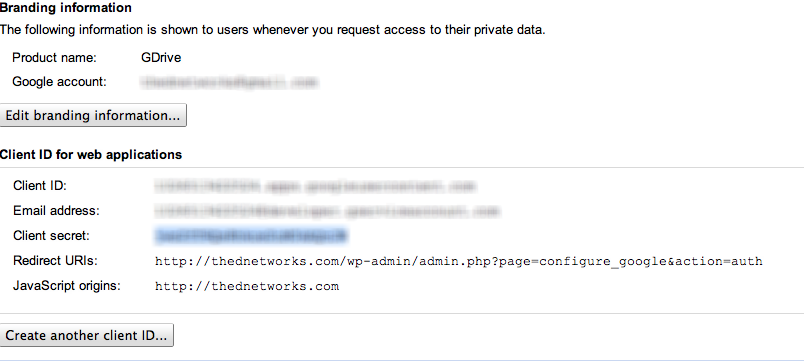
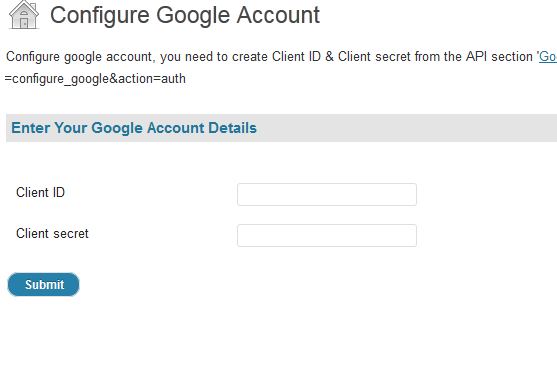 Now, where you can find these details, you need to have a Google Account once you’re logged in Click here, Go to API Access link from the left Menu, Click on Create another client ID…Â button
3. Select Web Application
In Your Site or Hostname add: yoursitename.com/wp-admin/damin.php?page=configure_google&action=auth
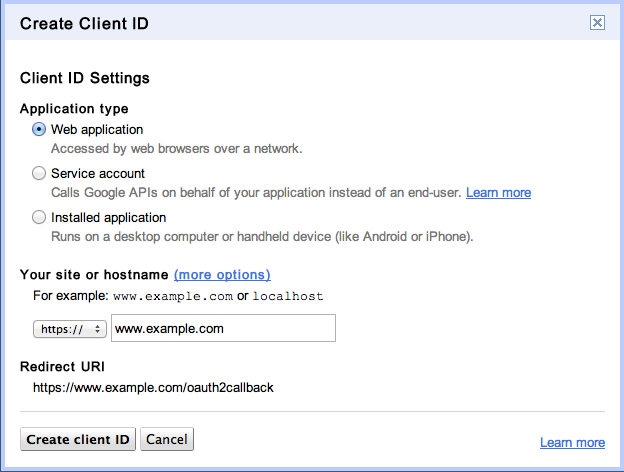
4. Click on Create client ID
You will be greeted with the Client ID, Email, Client Secret and few more details, Copy the client ID and Client Secret and paste it in the plugin details
5. Go to Backup Settings in the Plugin Settings and select the Folders you wish to backup also check the box if you want the Database backed up and stored to you Google Drive, it has various option including scheduled backed, et. al
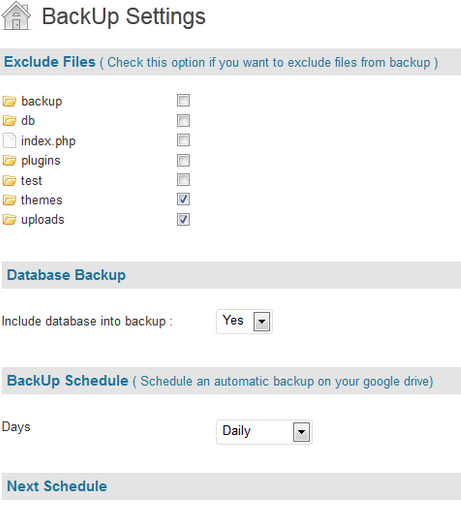
Then Goto Backup Link from the Plugin setting and go a One-Time Full Backup!
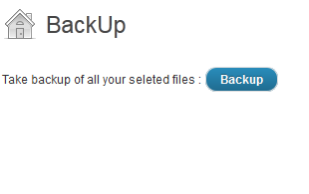
and VOILA!
If you have any trouble, feel free to comment below
The DNetWorks Team