
The operator logo changing phenomena has been around every since the monochrome display on the Nokia phones, we always look to customize our phones to make then unique, here is one of the ways you can change the Operator logo to whatever image you wish iPhone/iPad using Cydia Zeppelin Tweak.
There have been various tricks available to change the text of the Operator, like, Makeitmine and FakeOperator but if you want an image or say your own Logo on your iPhone here is how to do it
1. Incase if you don’t have the Modmyi Repo go to Cydia and Add the repo http://apt.modmyi.com/
2. Search for Zeppelin in Cydia and install it
3. Go to Phone settings and select Zeppelin

4. Pre-select the Logos that are present to change your logo to the images available. VOILA!

If you to create your own logo for Zeppelin follow the below steps
The Zeppelin tweak looks for specific file names in its directory so it knows which one to display depending on the status bar that is in view, these file names are below:
- [email protected] This image is displayed when the status bar is black, generally on the Springboard.
- [email protected] This image is displayed by Zeppelin when Notification Center is active.
- [email protected] Displayed when the status bar is silver, generally meaning an application is active.
- Non-Retina devices maximum logo size is 60 x 20 pixels.
- Retina devices maximum logo size is 120 x 40 pixels and must be appended with @2x [ e.g. [email protected], [email protected], [email protected]].
How to make your own logo for Zeppelin
1. Open your favourite Image editor and create a canvas for 120 x 40 px with 72dpi
2. Create a folder with any name, this name will appear on the Zeppelin Setting, in our case ‘thednetlogo’. This will be where all of your logo files will live and what will be uploaded to the device.
3. Import the logo to the canvas and resize it to fit the canvas screen, 120 x 40 px is the Maximum and if you want a rectangular logo we wanted a square logo so we selected 40 x 40 px
4. Once done, save them with [email protected], [email protected], [email protected] file names if you have  a retina display (iPhone4/4S) or black.png, etched.png, silver.png if you have a non-retina phone (iPhone 2G, 3G, 3GS)
5. Once you have created a logo files, connect your chosen SSH client to your jailbroken device.
6. Browse to /Library/Zeppelin and transfer the folder which we created in step 2 into the folder.
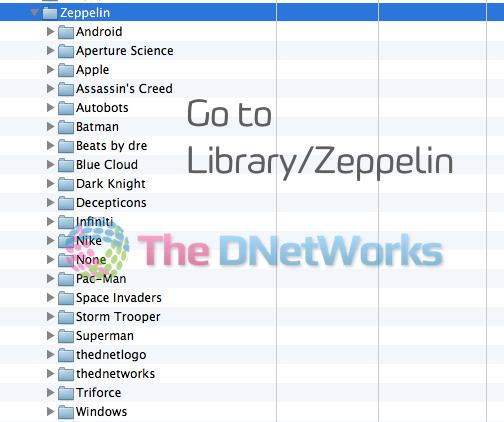
7. Go to Phone Settings as you did previously and these logo should be there, if you do not see it, make sure you’ve transferred all the files in the folder and also the files are Portable Network Graphics file (.png)
8. Rejoice and showoff!
If you wish to have the The DNetWorks Logo on your iPhone get it here
Let us know if you have an problems executing it