
If you have 2 Windows or 2 Mac OS X computer on the same local area network it is way easy too share data, however, if you wish to share data between a Mac and a Windows 7 computer it becomes a bit complicated. We are here with the Easiest way to share data between Mac OS X and Windows 7 on the Same Network, Wireless/Wired.
There are 2 broad steps to follow
1. Configure you Mac to Share data
2. Configure your Windows 7 PC to accessed the shared Data on the PC.
Simple eh? Yes, it is as simple as that.
How to Configure File sharing on Mac OS X to let the access on Windows 7
1. Click on the Apple Logo on the Top Right corner of your screen and goto System Preference
2. Click on Sharing Icon
3. Click on File Sharing and then add folders to things you want to share with your Windows 7.
4. Click on Options… button
5. Check all of the 3 options

6. When you click on the Account to be shared it will ask you to Add a Password, Enter a password and hit the Enter Key
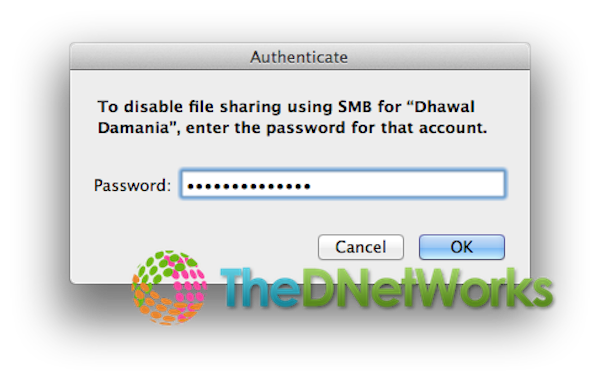 7. Wait!!! That is not all Now go back to System Preferences and This time click on Network
8. Click on Advanced.. button
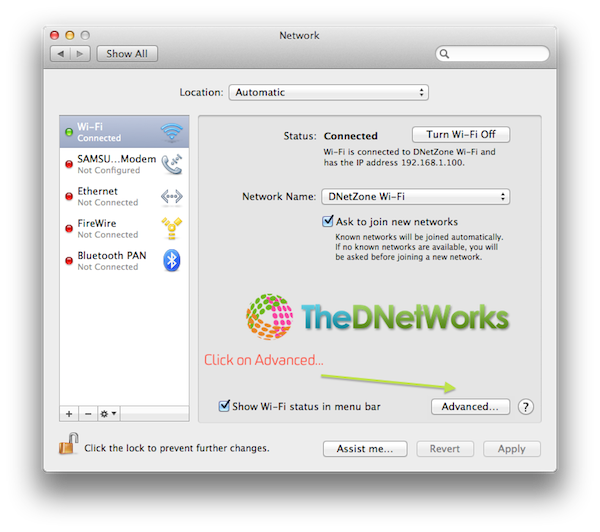
9. Click on WINS and Add the workgroup you Windows 7 PC is in, default is WORKGROUP.
10. Hit OK and you are done configuring the Mac.
How to access the Shared file by Mac OS X on Windows 7 PC on the Local Network
1. Make sure you are on the same network as the Mac.
2. Get the IP address of the Mac from the Network option in System Preferences, it is 192.168.1.101 here.
3. Enter it on to the Search Bar on Windows, or Open My computer and Enter the address in the address bar

4. It will ask you for the password that you had entered on the Mac, enter it here and VOILA

You have successfully shared you Mac files on Windows 7.
If you have any problems Feel free to comment here or Email Us. Also Like our Facebook Page.