
There is always an update on XDA Developers before the actual release, there is an awesome users and developers community over there and now one of the developers have come out with the Samsung Galaxy S2 version of the newest Android Operating System, Ice Cream Sandwich.
Previously, it was on beta and was a bit buggy which contained several stability issues and bugs. However, this version has already has been a stable release and a very few bugs will be found, it’s still not the official version though. We are walking your through the step by step process to install Android Ice Cream Sandwich in Samsung Galaxy S2
[notification type=”alert”] Disclaimer: What you see here is still in testing and MAY void you phone warranty, we are about to replace Galaxy S2’s current ROM to a new ICS ROM which is still not completely bug-free. Although your Galaxy S2 will run the latest version of Android by following this method, we still do not recommend you to follow unless you are an enthusiast Android fan and know what you are doing. The ICS ROM is still in beta phrase and The DNetWorks will not be responsible for any damage that your product may suffer in the process. Please do a Nandroid Backup before going ahead [/notification]
Here are the Steps to Install Ice Cream Sandwich (ICS) aka Android 4.0 on Samsung Galaxy S2
1. Download and unpack this file using the password samfirmware.com
2. Enable USB Debugging on your phone, if you don’t know how to do that, Go to Settings > Applications > Development and check this option.
3. Turn OFF your device and then put in the Download Mode. To access to Download Mode on Samsung Galaxy S2: press and hold Volume Down + Home + Power together. Release the buttons only shows when the screen is in the image below.
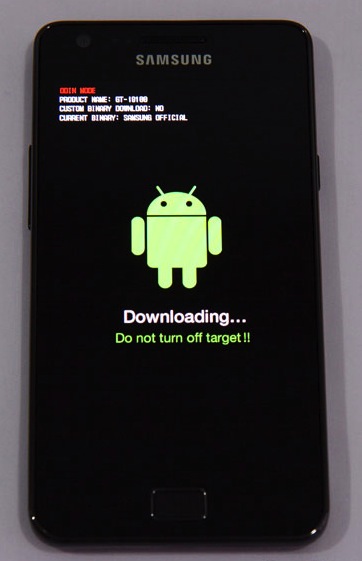
4. Press the Volume Up button to continue. You will then see a message that the file is being downloaded along with a warning message. This means that you are in Download Mode.
5. Download Odin to your computer through this link
6. Open Odin. Now Go to the folder you created in Step 1 and put the following files in Odin (based on tab name)
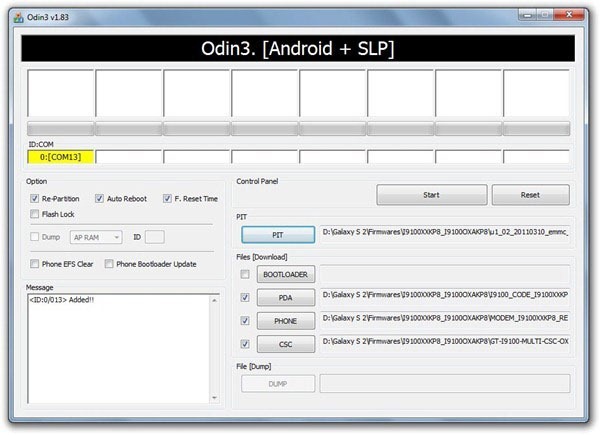
- PIT = u1_02_20110310_emmc_EXT4.pit
- PDA = I9100_CODE_I9100XXKP8_CL42141_REV02_user_low_ship.tar.md5
- PHONE = MODEM_I9100XXKP8_REV_02_CL1092599.tar.md5
- CSC = GT-I9100-MULTI-CSC-OXAKP8.tar.md5
7. In Odin application window, enable Auto Reboot and F. Reset Time.
8. Now Connect your Galaxy S2 to your computer, Odin will automatically recognize it.
[highlight color=”red”] Note that in the yellow box appears in the port that your device is connected. [/highlight]
8. To start press the Start button. DO NOT turn the power OFF or unplug the cable until your device restarts.
9. Disconnect the cable after the software shows process finished confirmation.
Welcome to ICS!
If you have any queries, shoot them in the comments!
The DNetWorks Team